Receive first
Listen to an available conversation or use the server audio test. Check device volume, the received-audio playback controls in Settings, and whether the selected room actually has activity.
Getting started
Begin with an approved account, a stable internet connection, a compatible browser and an available microphone. The secure application address is the same on phones and computers.
On the application sign-in page, choose Register new account. Administrator approval is required.
Private/incognito browsing may not offer installation. Android system navigation and power management cannot be completely controlled by a web app.
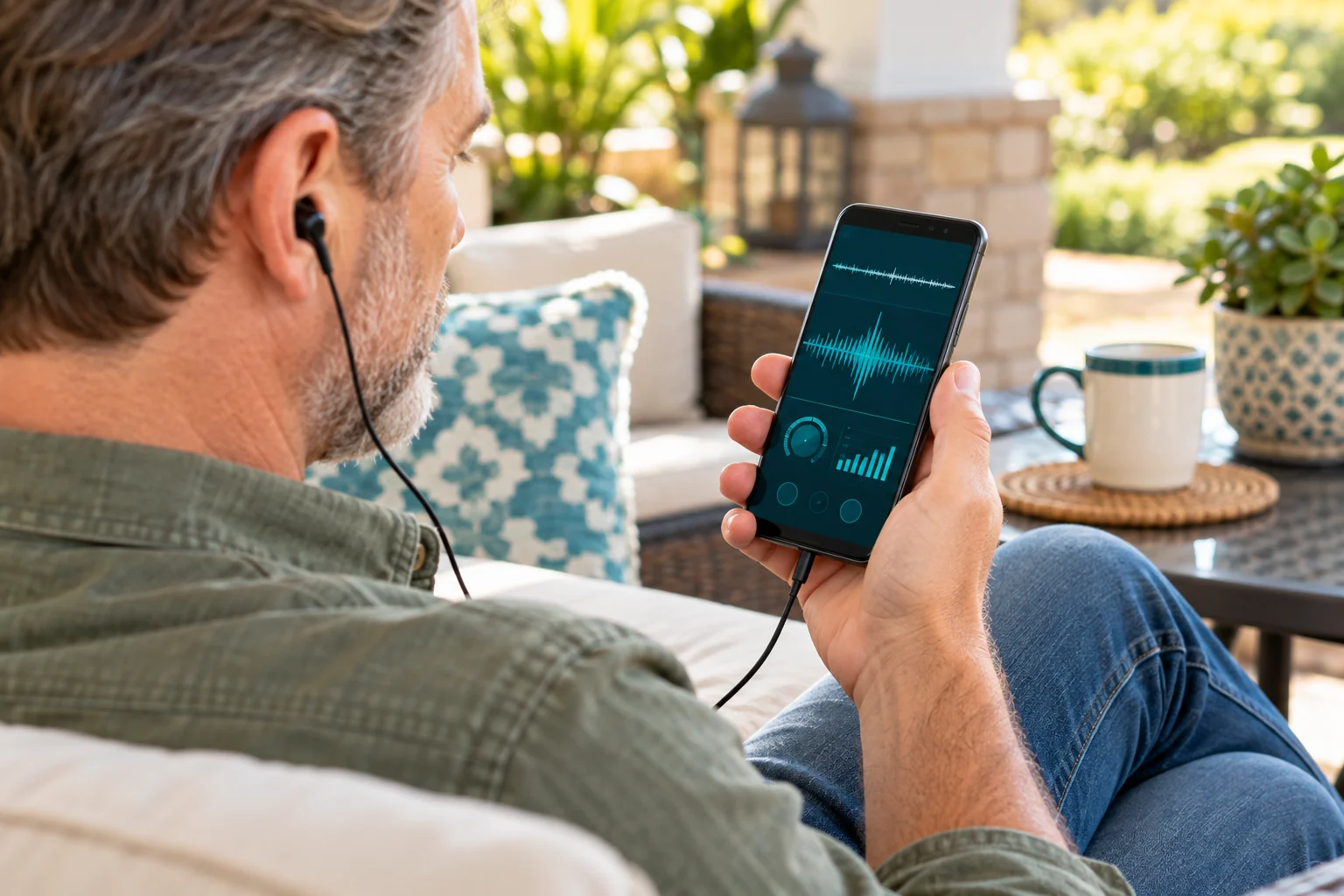
A wired or USB headset can reduce speaker feedback. Device labels and permission menus differ by operating system and browser.
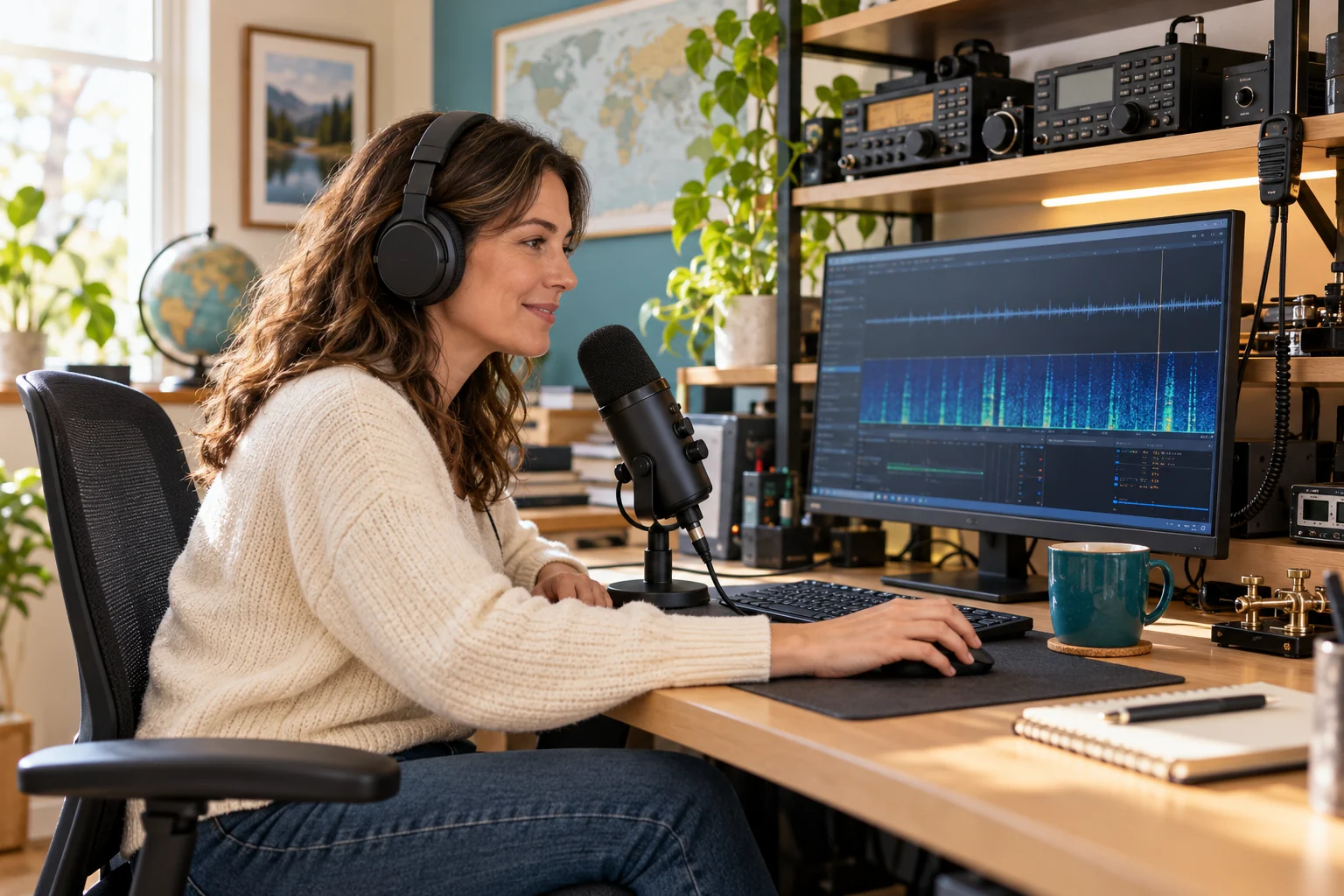
Listen to an available conversation or use the server audio test. Check device volume, the received-audio playback controls in Settings, and whether the selected room actually has activity.
Start with normal gain and speak naturally at a consistent distance. Reduce gain if the meter reaches the top or speech sounds distorted. A moving meter confirms local input, not end-to-end reception.
Use the available private echo test before a live conversation. End the test using its stop/disconnect control, then reconnect to normal radio operation as needed.
Confirm approval, callsign and app password. Try a fresh normal-browser session if an old installed app is stale. Verify the secure application address resolves on your network.
Connect an input device, choose it in the operating system, and recheck browser microphone permissions. A successful login does not guarantee an audio device exists.
Check playback and device volume, then test server audio. Confirm room activity. If a bridge is involved, ask the owner to inspect its connection and audio path.
Start with your callsign
Request an account, wait for approval, and explore the systems linked to your assigned room. Shared access does not require your own AllStar node credentials.
For licensed amateur radio operators. Approval is required before you can sign in. Available controls depend on your account permissions and configured bridges.